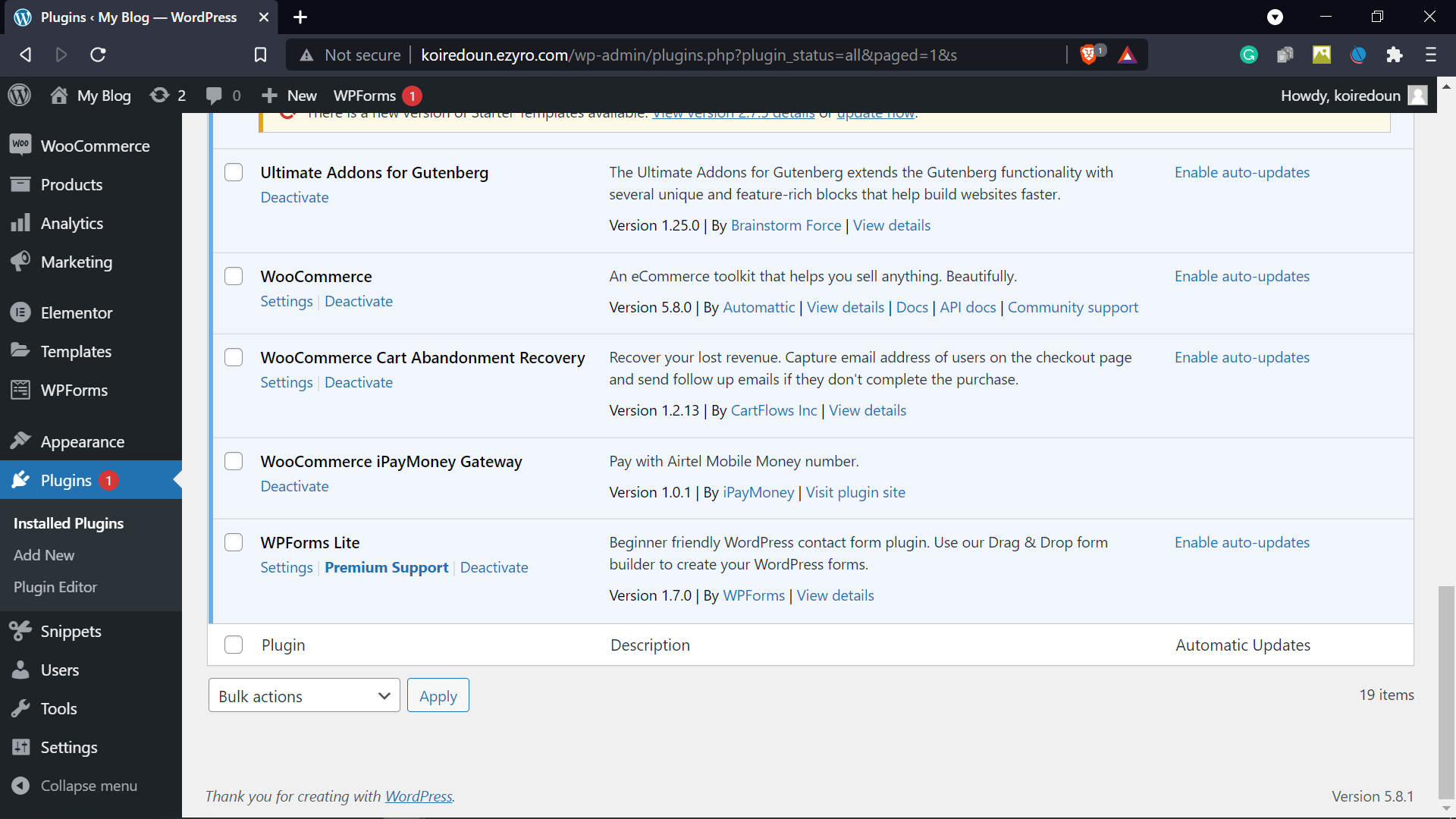
The WooCommerce plugin is available on the iMoney Encaissement website. To install it on your WooCommerce site, follow these steps:
  1. Download the plugin as a zip file here.
  2. Go to the dashboard of your WooCommerce site.
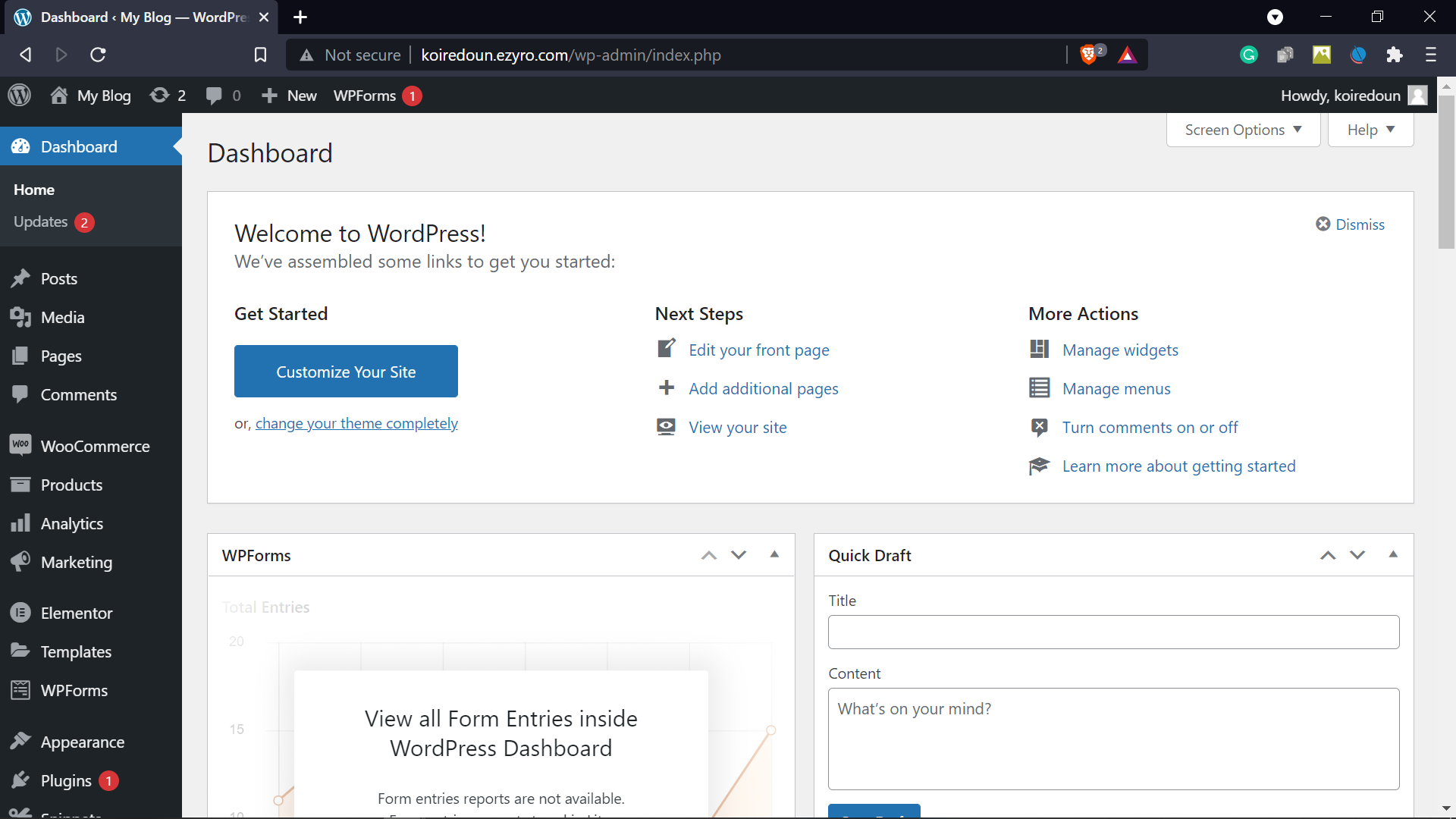
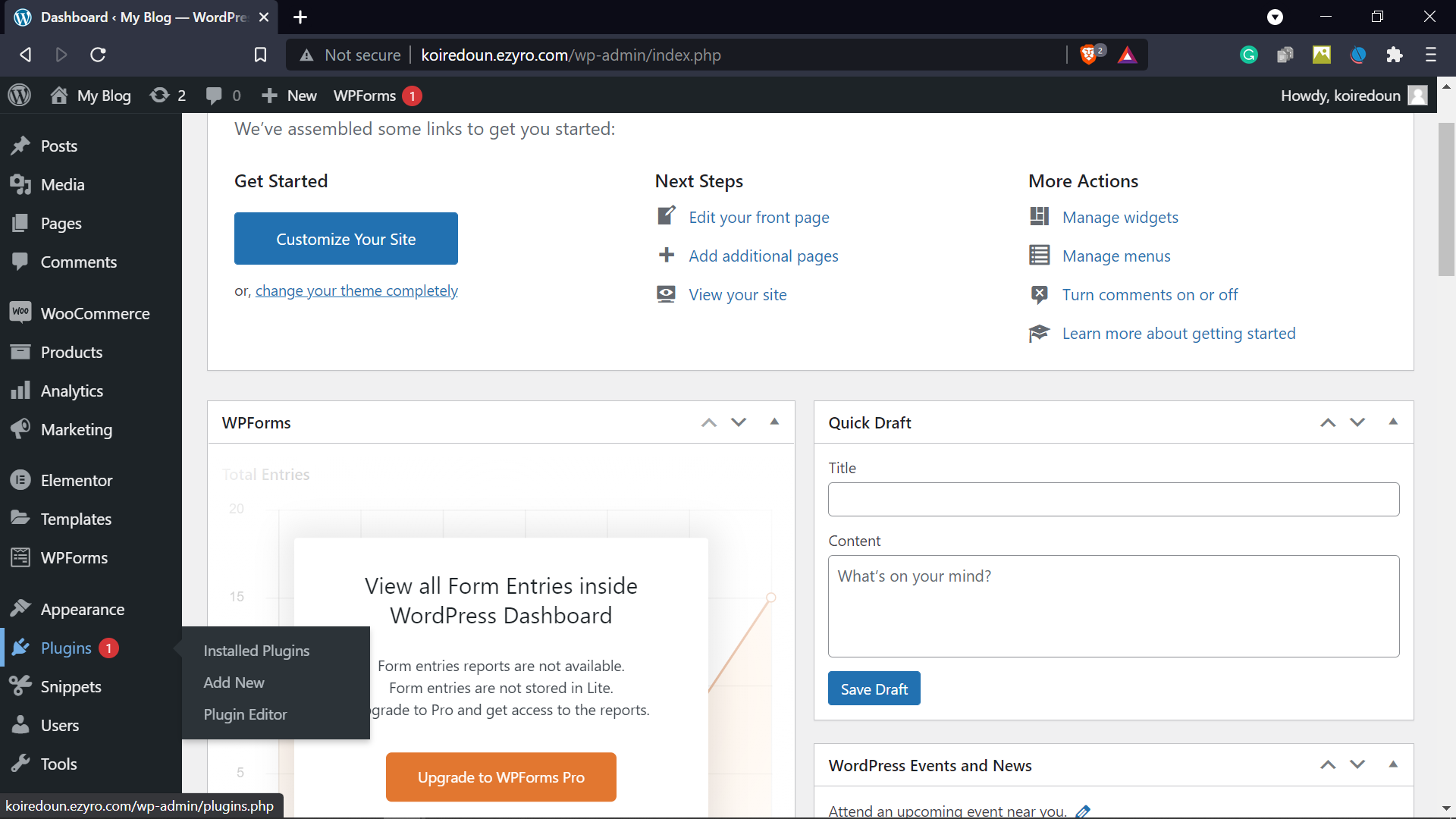
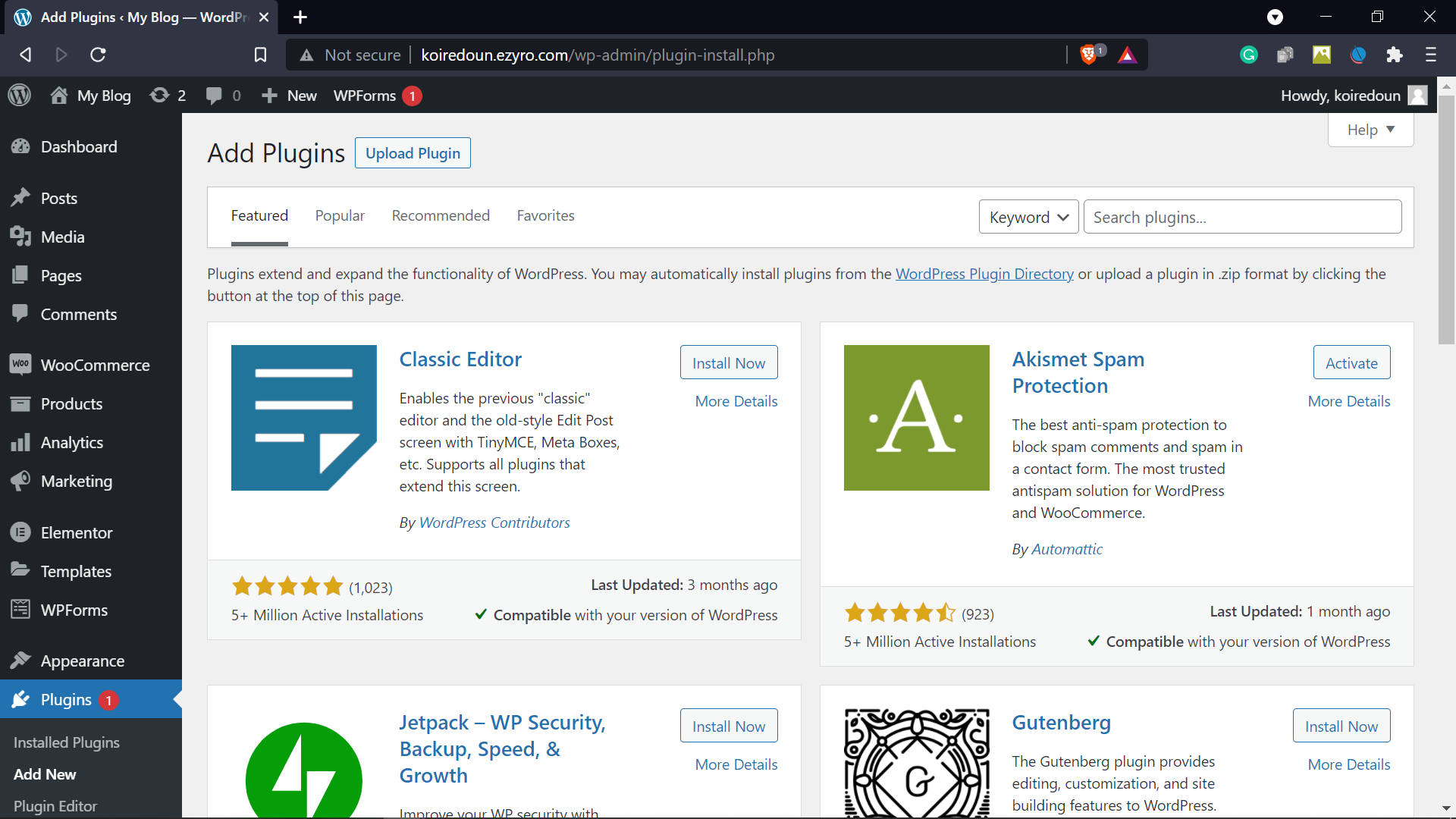
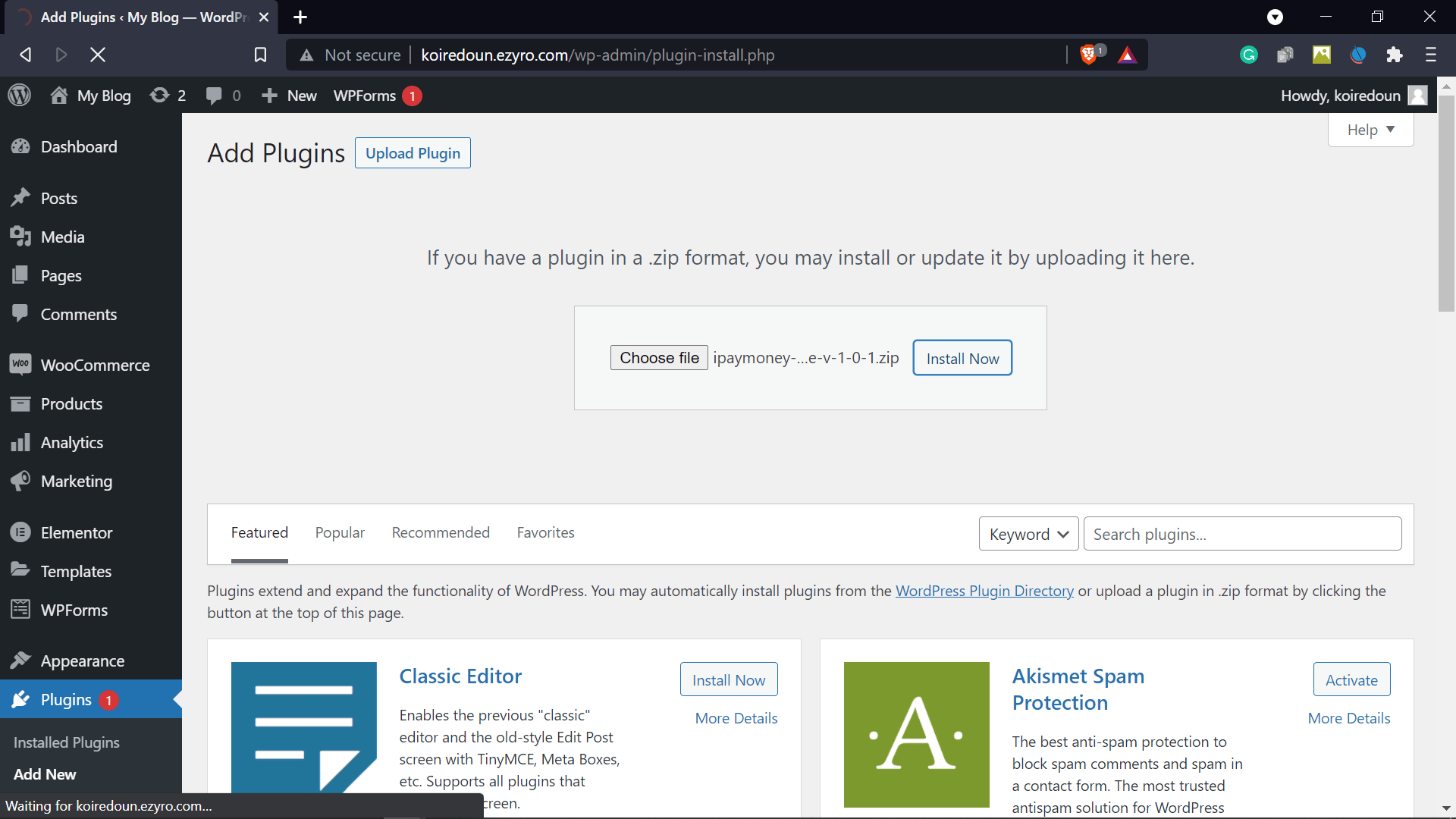
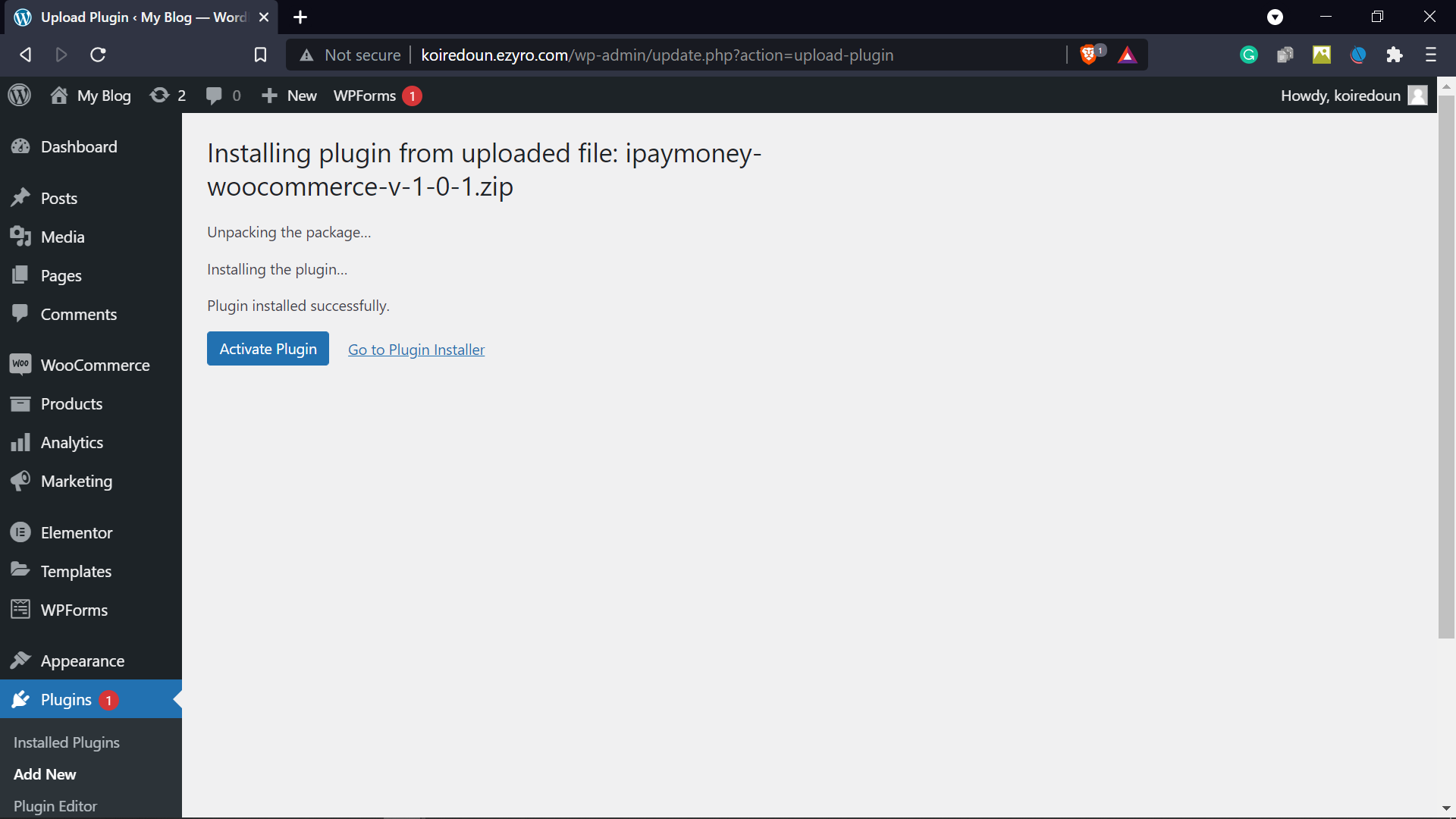
3. Go to the “Plugins” submenu, then choose the “Add New” option. 4. In the window that opens, choose the “Upload Plugin” option. 5. Add the iMoney Encaissement WooCommerce plugin zip file you downloaded, then confirm by clicking “Install Now”. 6. Wait a few moments: you have successfully installed the iMoney Encaissement WooCommerce plugin. Only one step remains before you can use it. 7. Activate the iMoney Encaissement plugin by clicking “Activate Plugin”. The plugin is then active and ready: you can collect your payments through iMoney Encaissement.
Note: if you are working in test mode with the iMoney Encaissement Sandbox, you must enable test mode when configuring the iMoney Encaissement plugin. In that case, you can use the test phone numbers provided by iMoney Encaissement — see the Sandbox and testing guide.
Configure your preferences, then click “Save”. You can now use iMoney Encaissement to receive payments from your customers.

An online payment with the iMoney Encaissement plugin

To check out, the customer specifies the payment method they want to use. On the checkout page, they find the list of payment methods available on your website, and choose iMoney Encaissement before placing the order by clicking “Place order”. iMoney Encaissement then shows a dedicated button in the payment flow to carry out the transaction. When the customer clicks “Proceed to payment”, the iMoney Encaissement widget opens. For a mobile money payment, the customer clicks the “Pay” button to complete the payment: they receive a message from their mobile operator asking them to confirm the debit. Once the customer’s account has been debited, iMoney Encaissement is notified and informs the customer that the operation succeeded.